A new data movement feature is available which you can use to directly send data from the Bioplatforms Data Portal to Galaxy Australia.
This feature preserves the rights and privileges of data you can access and your Galaxy environment. That is, you can only send data you have the rights to, and you can only send data to a history in your own Galaxy Australia account.
To send data from the Data Portal to Galaxy.
Step 1. Navigate to your dataset in the Data Portal
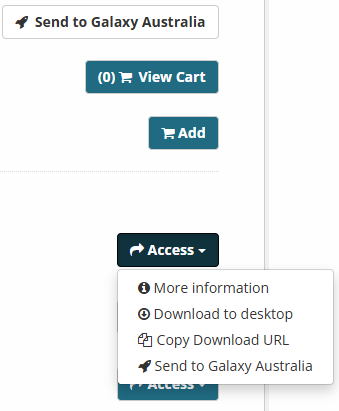
Within the data portal, navigate to your dataset. If you have access to that dataset, you'll see two options for "Bulk downloads (metadata and data)" and "Send to Galaxy Australia".

Step 2. Send data to Galaxy Australia
You have the option to send the entire dataset (made up of multiple resources), or individual resources.
- To send the entire dataset, click on 'Send to Galaxy Australia' on the top right of the dataset pane.
- To send individual resources, click on 'Access' next to the resource, and then 'Send to Galaxy Australia'
Step 3. Select Galaxy Australia history
After you click Send to Galaxy, you'll be prompted to select a Galaxy history to send to.
Select your history from the list, and the selected history will turn blue, and the 'Send to Galaxy' button will become active.
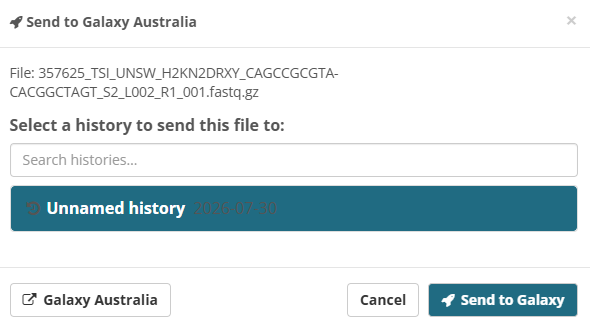
Click on 'Send to Galaxy' to move the data resource(s) to your selected Galaxy history.
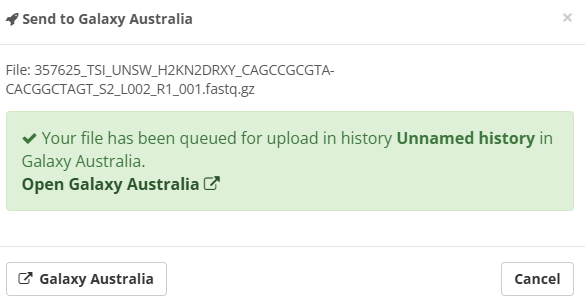
You will then the window change to the following:
Step 4. Navigate to Galaxy Australia
Navigate to Galaxy Australia, and you will see your dataset or resource appear in your selected history.
- Datasets made up of multiple resources will appear as multiple entries in the history, whereas individual resources will appear as a single resource.
- Data under active transfer will appear yellow
- Data that has been successfully transferred will appear green
Happy analysing!
Was this article helpful?
That’s Great!
Thank you for your feedback
Sorry! We couldn't be helpful
Thank you for your feedback
Feedback sent
We appreciate your effort and will try to fix the article